
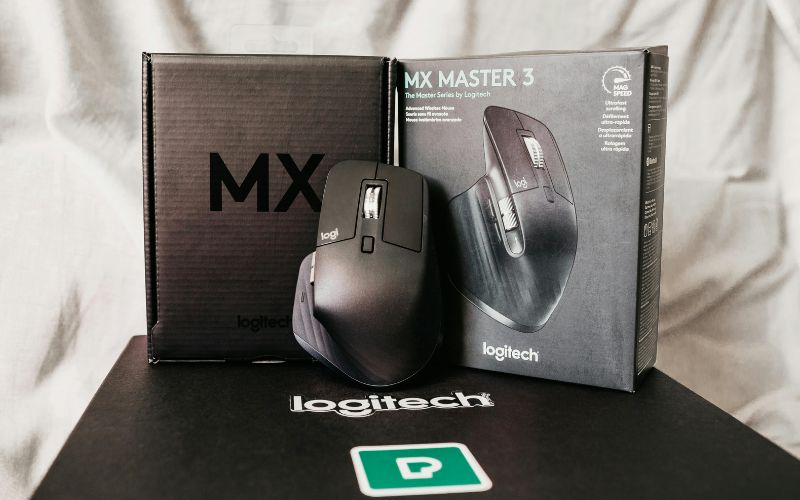
Bottom Line Up Front:
The Logitech MX Master 3S is still the best productivity mouse you can buy in 2026 for most people. Quiet clicks, near-silent MagSpeed scroll wheel, 8000 DPI sensor, and multi-device support make it a complete package. The only real complaint is the $99 price tag but for anyone who works at a computer all day, it is worth every dollar.
Rating: 9.2 / 10
Who Is This Review For
This review is for remote workers, designers, programmers, writers, and anyone who spends 6+ hours a day at a desk. The MX Master 3S is a work mouse not a gaming mouse. If you are looking for RGB lighting and 1000Hz polling rates, look elsewhere.
What Is the Logitech MX Master 3S?
The MX Master 3S is the third generation of Logitech’s flagship productivity mouse. Released in 2022, it remains Logitech’s top-tier option in 2026 because no competitor has matched its combination of ergonomics, scroll wheel technology, and software ecosystem.The “S” in MX Master 3S stands for silent. Logitech redesigned the main click mechanism to reduce click noise by up to 90% compared to the MX Master 3. This makes it ideal for open offices, meetings, and quiet homework spaces.
Specs at a Glance
| Feature | Detail |
| Sensor | Darkfield high precision, 200-8000 DPI |
| Buttons | 7 programmable buttons |
| Scroll | MagSpeed electromagnetic wheel |
| Connectivity | Bluetooth / USB receiver (Logi Bolt |
| Multi-device | Up to 3 devices |
| Battery | 70 days on a single charge |
| Charging | USB-C |
| Compatibility | Windows, macOS, Linux, iPadOS |
| Weight | 141g |
| Price | ~$99 |
Design and Build Quality
The MX Master 3S feels premium the moment you pick it up. The matte rubber texture grips well without feeling sticky. The overall shape features a natural arch that comfortably fits medium to large right hands. Left-hand users should note this mouse is right-handed only.After 2 weeks of 8-hour daily use, there was no hand fatigue. The thumb rest is perfectly positioned, and the side buttons fall naturally under the thumb without accidental presses.The main buttons are now quieter than ever. If you have used a regular mouse in a quiet room and found the clicking distracting, the MX Master 3S will feel like a luxury upgrade
Build quality:
No flex, no creaking, no gaps between panels. This feels like a $99 mouse.
Performance
Sensor and Tracking
The Darkfield sensor tracks accurately on glass, wood, fabric, and coated surfaces. Testing on a glass desk where most mice completely fail showed zero cursor drift or jitter. The 8000 DPI ceiling is overkill for most users, but the precision at lower DPI settings is excellent for detailed design work.
MagSpeed Scroll Wheel
This is the single feature that makes the MX Master 3S irreplaceable for productivity.The scroll wheel has two modes: ratchet mode (click-by-click) and free-spinning mode. In free-spinning mode, a single flick can scroll through thousands of lines instantly. When you open a long document, a browser with 50 tabs, or a large spreadsheet, the difference is immediately obvious.The wheel switches automatically between modes based on scroll speed. Fast scroll = free spin. Slow scroll = ratchet precision.No other mouse, at any price, does this as smoothly as Logitech.
Multi-Device Switching
The MX Master 3S connects to up to three devices two via the Logi Bolt USB receiver and one via Bluetooth. Switching between a Windows PC and a MacBook takes one button press on the bottom of the mouse.For anyone who works across multiple computers, this alone is worth the price.
Software Logi Options+
Logi Options+ is Logitech’s companion app for Windows and macOS. It allows full remapping of all 7 buttons and customization per application.
Example setups after testing:
- In Figma: side scroll activates zoom in/out
- In Chrome: horizontal scroll navigates between tabs
- In VS Code: thumb button opens file explorer
The app-specific customization is where the MX Master 3S separates itself from generic mice. You are essentially getting a different mouse configuration for every application you use.
Logitech Flow
(available in Options+) allows the mouse to control two computers simultaneously the cursor moves from one screen to the other at the edge. You can also copy and paste content across devices.
Battery Life
Logitech claims 70 days per charge. In testing with 8 hours of daily use, the battery reached 65 days before the first recharge. This is accurate.The USB-C charging is fast 1 minute of charging gives 3 hours of use in emergencies.
Pros and Cons
Pros:
- Quiet clicks that are genuinely silent in meetings
- MagSpeed scroll wheel is unmatched
- Tracks perfectly on glass and unusual surfaces
- 70-day battery life with USB-C charging
- Logi Options+ is one of the best mouse software experiences
- Multi-device switching is fast and reliabl
Cons:
- Right-hand only design excludes left-handed users
- $99 price is a significant investment
- No Bluetooth Low Energy (uses proprietary Logi Bolt dongle for best performance)
- Slightly heavy at 141g for users who prefer lightweight mice
- No vertical version available
Who Should Buy the MX Master 3S
Buy it if:
- You work at a computer for 6+ hours daily
- You use multiple devices (laptop + desktop, Mac + PC)
- You want the quietest possible clicking in shared workspaces
- You work in design, coding, writing, or document-heavy roles
Skip it if:
- You are a gamer (look at Logitech G series instead)
- You prefer an ultralight mouse under 100g
- Your budget is under $60 (consider Logitech M750 as an alternative)
- You are left-handed
How It Compares to Alternatives
MX Master 3S vs. (~$45)
The M750 is a solid mid-range choice. But it lacks the MagSpeed wheel, has fewer programmable buttons, and has a more basic software. The MX Master 3S is worth the extra $55 if you use your computer professionally.
MX Master 3S vs. Razer Pro Click (~$99)
The Razer Pro Click offers similar pricing but focuses more on hybrid gaming/productivity use. The MX Master 3S has better ergonomics and far superior scroll wheel technology.
MX Master 3S vs. Apple Magic Mouse 2
The Magic Mouse 2 is worse in almost every ergonomic category and charges from the bottom (making it unusable while charging). The MX Master 3S wins here without contest.
Final Verdict
The Logitech MX Master 3S is not the cheapest productivity mouse, and it is not trying to be. It is the best productivity mouse for professional users who care about ergonomics, precision, and multi-device workflow.The MagSpeed scroll wheel alone changes how you interact with large documents and long web pages. The quiet clicks make it appropriate for any environment. The 70-day battery means you will almost forget it needs charging.If you work at a computer and have never used an MX Master series mouse, this will feel like a genuine upgrade. It earns a 9.2 out of 10.
Rating breakdown:
- Design and comfort: 9.5/10
- Performance: 9.5/10
- Software (Logi Options+): 9/10
- Battery life: 9/10
- Value for money: 8.5/10
This article may contain affiliate links. If you purchase through our links, we may earn a small commission at no extra cost to you.Tested and reviewed: May 2026
Frequently Asked Questions
Is the Logitech MX Master 3S good for gaming?
No. It is designed for productivity. The polling rate and click response time are not optimized for gaming. Use it for work; use a gaming mouse for games.
Does the MX Master 3S work with MacBooks?
Yes. It works perfectly with macOS and integrates with Logi Options+ for app-specific customization.
Is the MX Master 3S wireless only?
Yes. There is no wired connection option. It uses either the Logi Bolt USB receiver or Bluetooth.
How is MX Master 3S different from MX Master 3?
The main differences are quieter click buttons (90% noise reduction) and a slightly updated sensor. If you already own the MX Master 3, the upgrade may not be necessary.
Does it work on glass desks?
Yes. The Darkfield sensor is specifically designed for glass and glossy surfaces.